Quick Answer
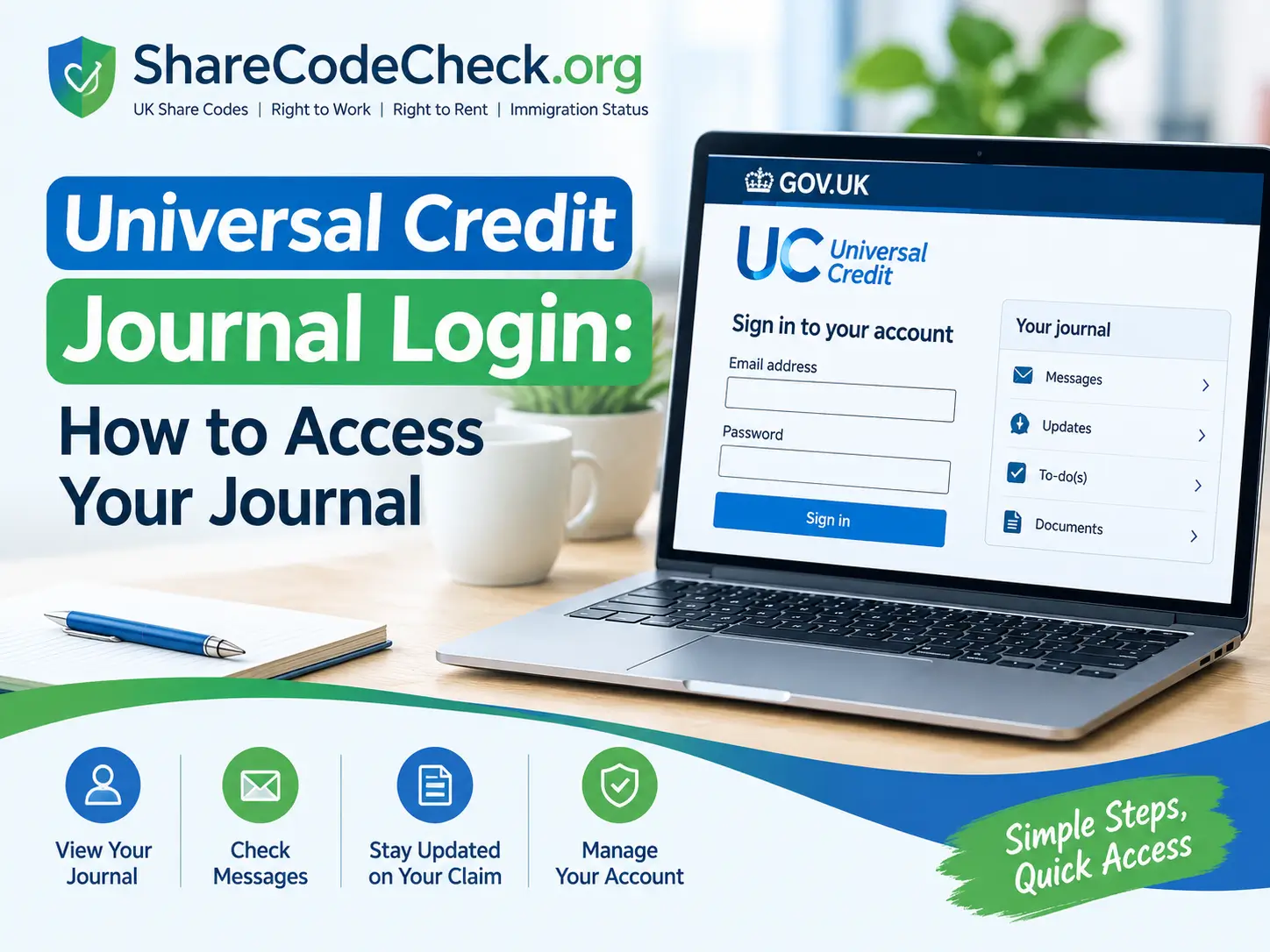
Sign in to your Universal Credit account on GOV.UK, then open the journal inside it. There is no separate journal login and no official app.
What is the Universal Credit journal?
The journal is the messaging area inside your Universal Credit online account. You use it to read messages from your case manager or work coach, and to send them messages about your claim.
It is not a separate website, so there is nothing else to sign in to.
How to get to your journal?
The journal opens only after you sign in to your account:
- Go to gov.uk/sign-in-universal-credit by typing the address yourself, rather than clicking a link in a text or email.
- Select the sign-in button and enter the username and password you set up when you applied.
- Once you are inside your account, open the journal from your account home page.
If the page layout looks different from what you expect, use the journal link or tab that your account shows. Do not search for a different login.
For the full sign-in walkthrough, see our Universal Credit login guide.
Why people search for a “journal login”?
Many people search for “Universal Credit journal login” because they were told to check their journal.They assume the journal has its own address or its own username. It does not. Your account username and password open the whole account, journal included.
What you can do in your journal?
The journal is for contact about your claim.You can send messages about your claim and read replies from Universal Credit.You can tell Universal Credit what you are doing to find work, such as applying for jobs, attending interviews or taking training.
You can ask for help and support, ask general questions or report a change in your circumstances.
The journal and the to-do list are different
Your account also has a to-do list.The to-do list shows tasks, for example an appointment your work coach has booked. The journal holds the written conversation. Check both when you sign in.
How you will know there is a new message?
Universal Credit usually sends a text or email when your journal or to-do list is updated.That text or email tells you to check your account. It does not need you to click a link to read the message. Sign in from gov.uk directly each time, and read the message inside your account.
How long replies take?
The journal is not an instant messaging service. Official guidance says it can take a few days to get a reply. If your matter is urgent, use the official contact routes on GOV.UK rather than sending repeated messages.
Tips for writing a journal message
These are practical habits, not official rules:
- Keep messages short, factual and polite.
- Send one message per issue, so each one is easy to answer.
- Pick the category that fits your message when the journal asks for one.
- After a phone call or appointment, confirm what was agreed in the journal so you have a written record.
- If something in your journal looks wrong, say so in a new message and ask for an explanation.
Reporting a change through the journal
Universal Credit says you should report changes in your circumstances using your online account. Do not make a new claim to report a change, as that can delay your payment. If the change you want to report is not listed, contact Universal Credit through your journal or by phone.
If you cannot open your journal?
The cause is usually one of three things:
You cannot sign in. Use the reminder option on the sign-in page, or see our login guide for forgotten details and lockouts.The service is down or showing an error. Read what Universal Credit login service unavailable means and try again later.
You have no internet or phone access. Official guidance says you can contact your jobcentre or speak to your work coach at your next appointment.
Fake journal messages and scam links
Scammers copy the language of real journal and text alerts. DWP does not text or email you asking for personal or bank details. If a message asks for them, do not tap the link. Sign in to GOV.UK directly and check your journal there.
See our guide to spotting share code and government scams for the warning signs.
Northern Ireland
This guide follows the GOV.UK service. Northern Ireland claimants also have official guidance on nidirect, which describes the same journal-based way of keeping in touch. Check nidirect for any Northern Ireland-specific steps.
Key Takeaways
- The journal is inside your Universal Credit account, so one sign-in opens both.
- Sign in only through gov.uk/sign-in-universal-credit, typed directly.
- There is no official Universal Credit app, so use a browser.
- Replies can take a few days, so use official contact routes if it is urgent.
- Report changes in your account, not by making a new claim.
- DWP does not ask for bank or personal details by text or email.
FAQs
Is there a separate Universal Credit journal login?
No. The journal is part of your account, so your normal username and password open it.
Can I use the journal on my phone?
Yes, through a web browser. There is no official Universal Credit app, so do not install one that claims to be official.
How long does a reply take?
Official guidance says it can take a few days. The journal is not instant messaging.
Can I report a change in the journal?
Yes. Universal Credit says to report changes through your online account. If you cannot find the right option, message them through the journal or phone.
What if my journal message looks wrong?
Send a new message explaining what looks wrong and asking for an explanation. Keep a record of the date.
Can I ask to close my claim through the journal?
Official guidance describes a route for this through the journal. Check the current options in your account before relying on it.